
The Ciakko browser is the cleanest way to record a website or a web app. It is exactly the size of the video, the site is laid out at the width you choose, and nothing else of your screen ends up in the take.
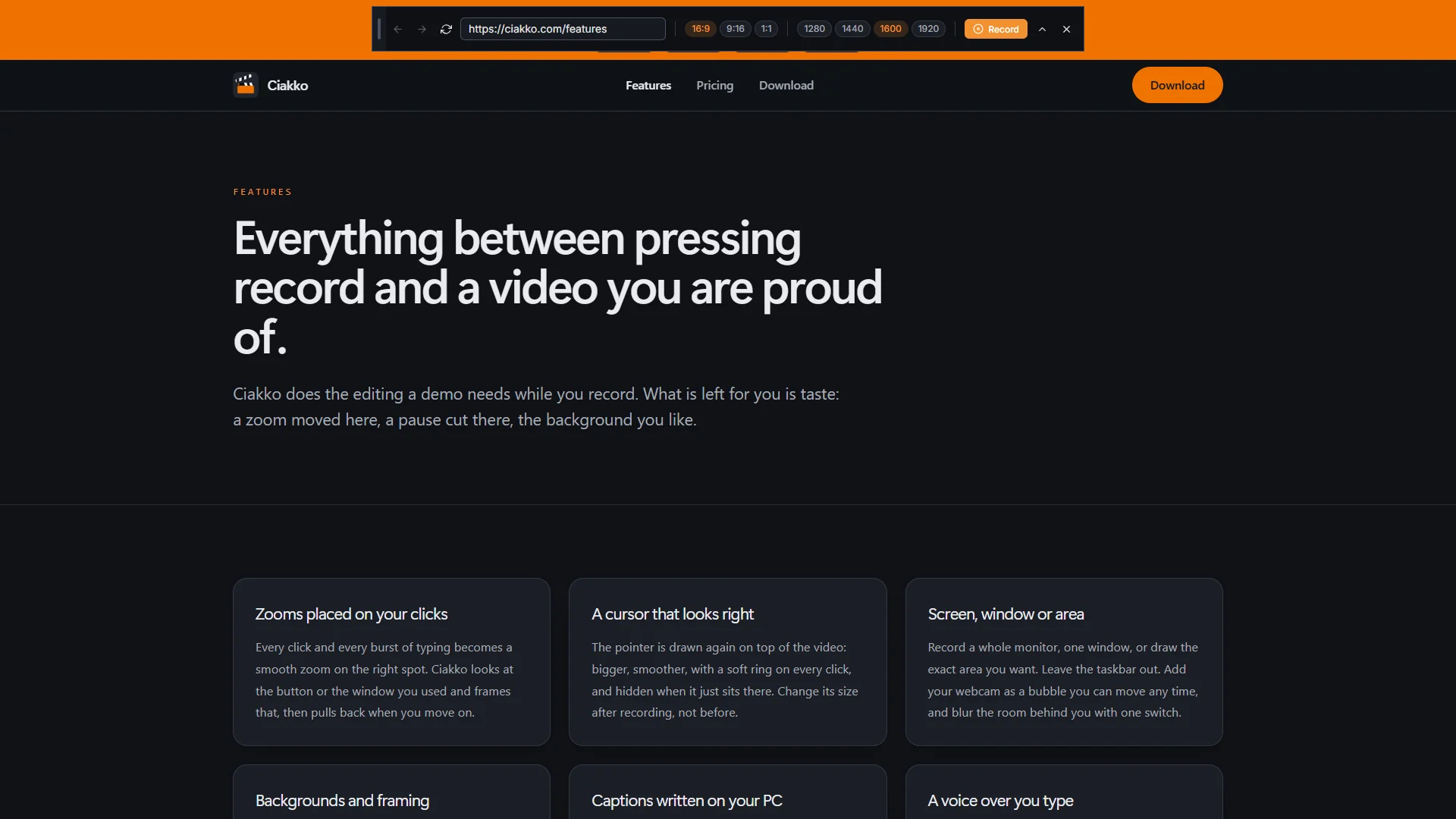
Open it
- From the Ciakko icon next to the clock, Browser.
- In the recording window, tab Browser: type the address and press Open browser.
The bar

The bar above the browser is never in the video:
- Back, Forward, Reload and the address. Text that is not an address becomes a web search.
- The video format: 16:9 (1920x1080), 9:16 and 1:1 (1080x1080).
- The page width: how wide the site believes your screen is. A smaller width makes everything bigger in the video; too small and the site switches to its mobile layout, so go back up one step.
- Record opens the recording window on the Browser tab.
- Hide the bar turns it into a small tab on the browser's top edge: click the tab to bring the bar back. Close the browser closes it.
Drag the bar by its grip on the left.
The vertical format
In 9:16 the page sits across the top of a vertical video, with room below for captions and your face. A page meant for a Short is drawn as a 4:3 view, so the text stays big on a phone.
Record a site
- Open the site and sign in where it asks: the browser keeps your logins between sessions, like a normal browser. Saved passwords and form autofill are off.
- Choose the format and the page width.
- Record on the bar, then the microphone, camera and project in the recording window, then Record.
- Use the site as you normally would; keep using the bar to navigate.
- Stop from the recording bar: the take opens in the editor.
With Claude
Claude can drive this browser for you: it opens pages, clicks, types and scrolls with a pointer drawn in the browser, never with your mouse, and it can film a whole script of steps in one take. Passwords stay yours: when a page asks to sign in, Claude asks you to do it in the browser. See Edit with Claude.