
This page takes you from an empty Ciakko to a finished video, along the shortest path. When you reach the end you have an MP4 you can upload.
You need Ciakko installed, signed in with your email, and the trial or a license active. Nothing else: no upload, the video never leaves your PC.
Open the recording window
Start Ciakko from the Start menu. The first time it asks for your email and sends you a code to sign in, then the recording window opens. Later, Ciakko stays next to the Windows clock: click its icon and choose New recording.
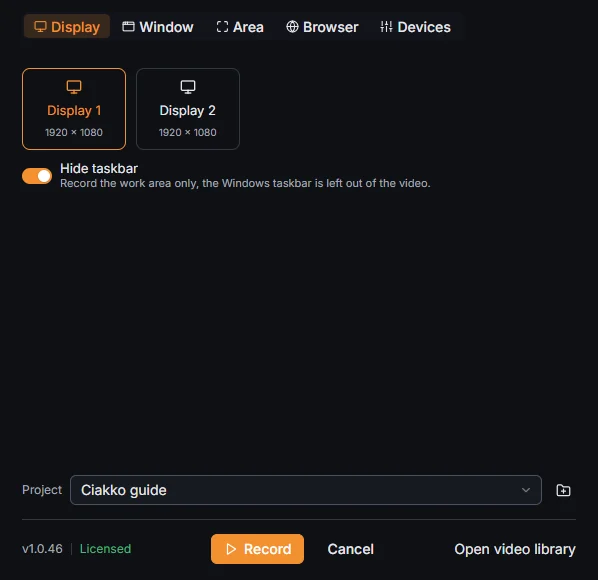
The tabs at the top are what you can record:
- Display: a whole screen.
- Window: one window, whatever is behind it.
- Area: a rectangle you draw on the screen.
- Browser: a website inside Ciakko's own browser, at the exact size of the video.
- Devices: microphone, camera, computer sound and automatic zoom.
For a first video, stay on Display and pick the screen.
Hide taskbar leaves the Windows taskbar out of the video. Turn it off when the thing you record fills the whole screen, or the bottom strip of that window is cut too.
Choose microphone and camera
Open the Devices tab.
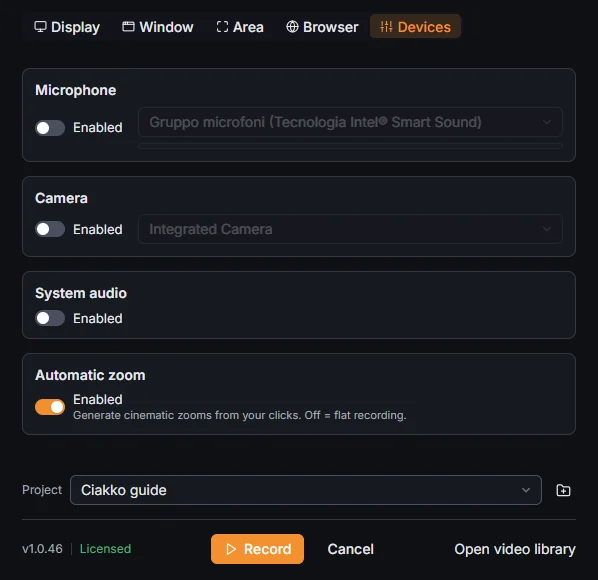
- Microphone: turn it on to talk over the recording. The bar under the name moves when it hears you.
- Camera: turn it on to appear in a round bubble over the screen.
- System audio: the sounds of the computer, such as a video playing or a notification.
- Automatic zoom: leave it on. Ciakko follows your clicks and your typing and zooms where the action is.
Project at the bottom is where the take goes. The first time Ciakko makes one for you.
Record
Press Record. A 3 second countdown starts, then a small bar appears on the screen you record. The bar is never in the video.

- Pause, then Resume to go on: the pause is not in the video.
- Retake: you got a sentence wrong. Press it and say the sentence again. The wrong part waits in the editor as a proposed cut.
- Chapter: a YouTube chapter starts here.
- Stop: ends the recording.
Work as you normally would. Click where you want the viewer to look: the automatic zoom follows your clicks and your typing.
Look at the result in the editor
When you press Stop, the editor opens on the take.
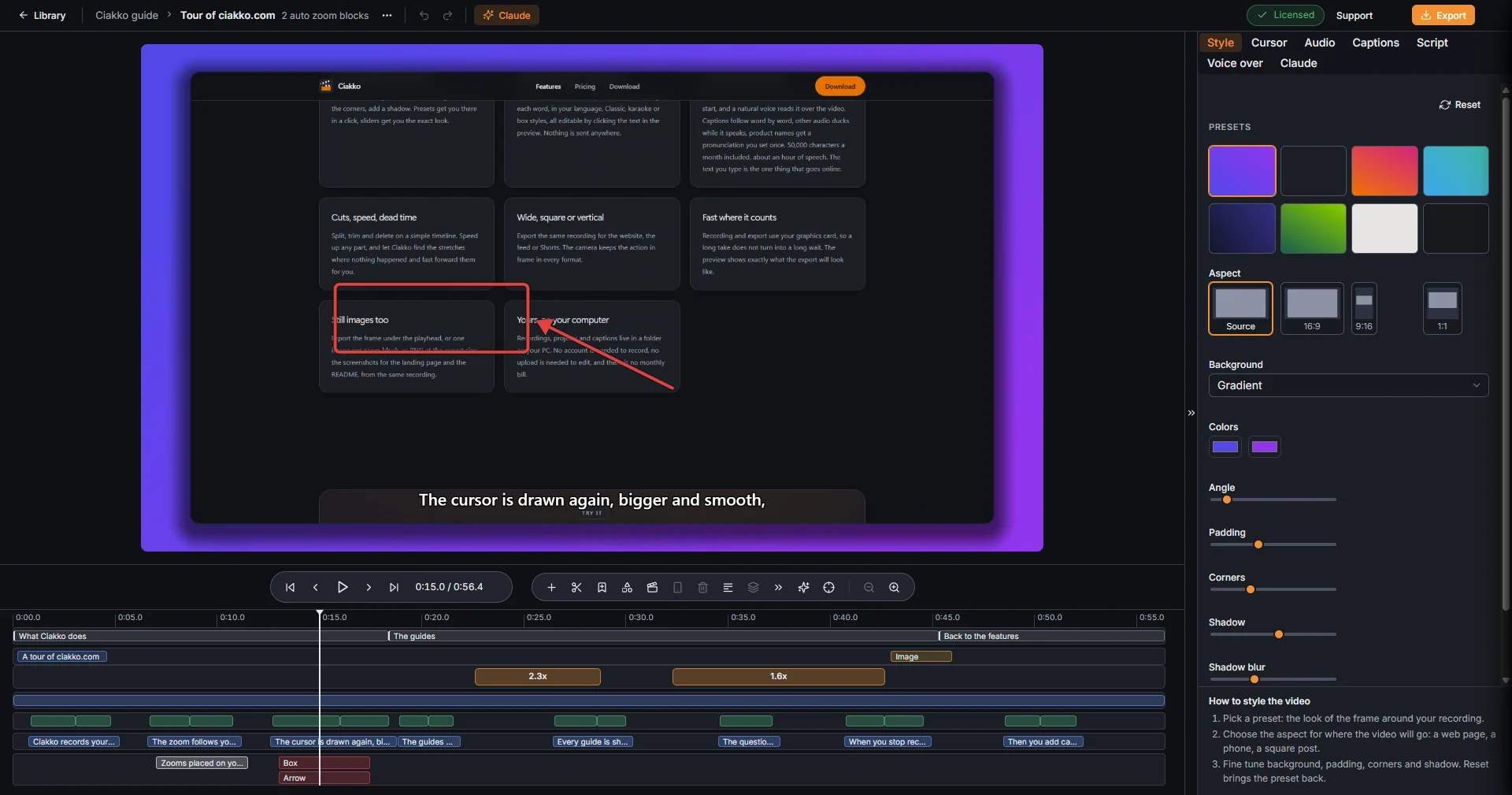
- At the top, the preview: it shows the video as it will be exported. Press Space to play and pause.
- Below, the timeline: time runs from left to right and every edit sits in its own lane.
- On the right, the settings in tabs: Style, Cursor, Audio, Captions, Script, Voice over and Claude. Camera appears when the take has a webcam.
Every change saves by itself. Undo and Redo at the top, or Ctrl+Z and Ctrl+Y, go back and forward.
The zooms
Each orange block on the timeline is a zoom made from your clicks and your typing.
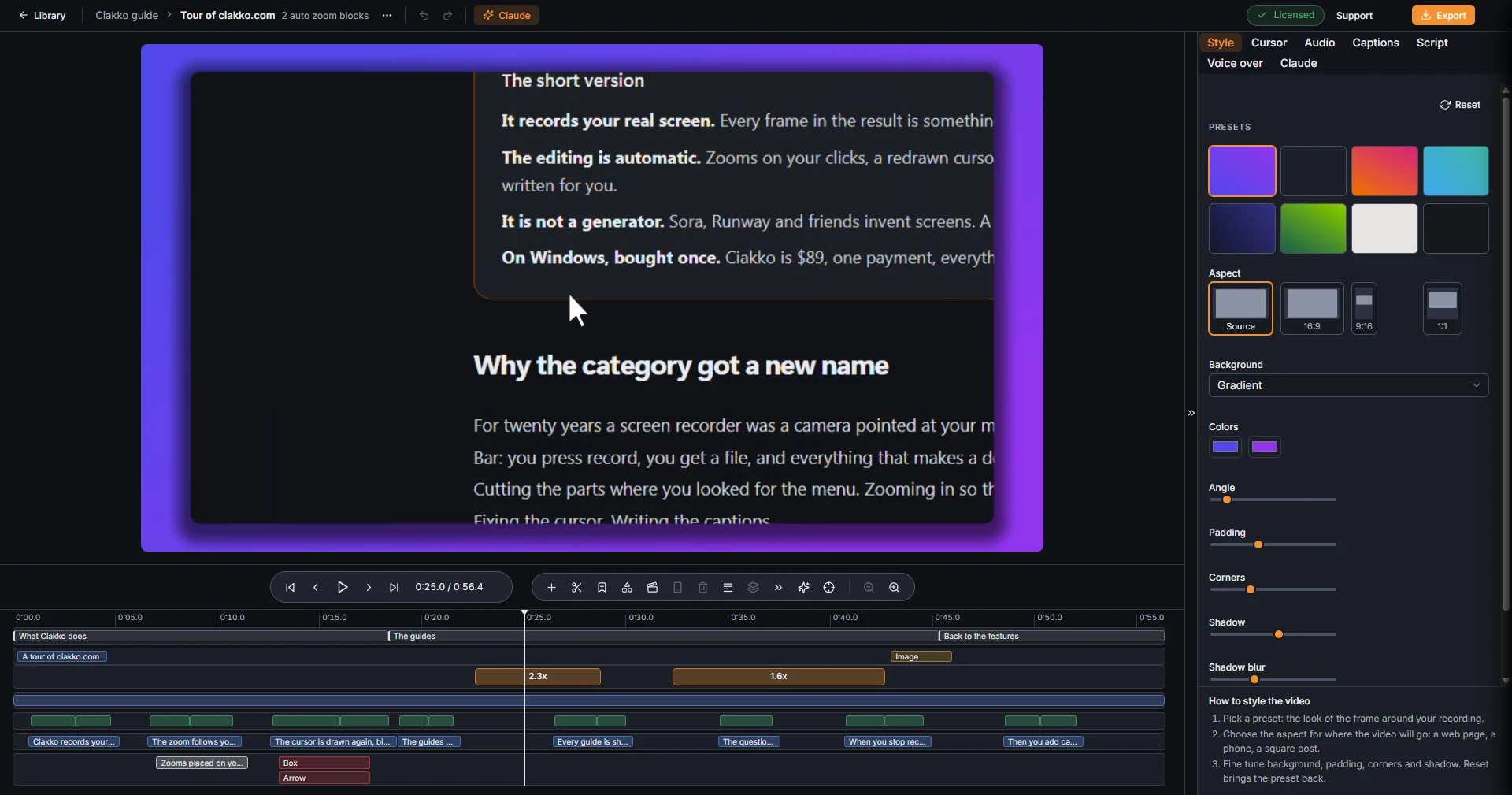

- Drag the ends of a block to make it start or end at another moment.
- Add zoom, the first button of the timeline toolbar, adds one at the playhead.
- Select a block and press Del to remove it.
- Regenerate zoom, in the Project actions menu at the top, builds them all again from the clicks.
The Zooms page has the rest.
Add captions
Open the Captions tab.
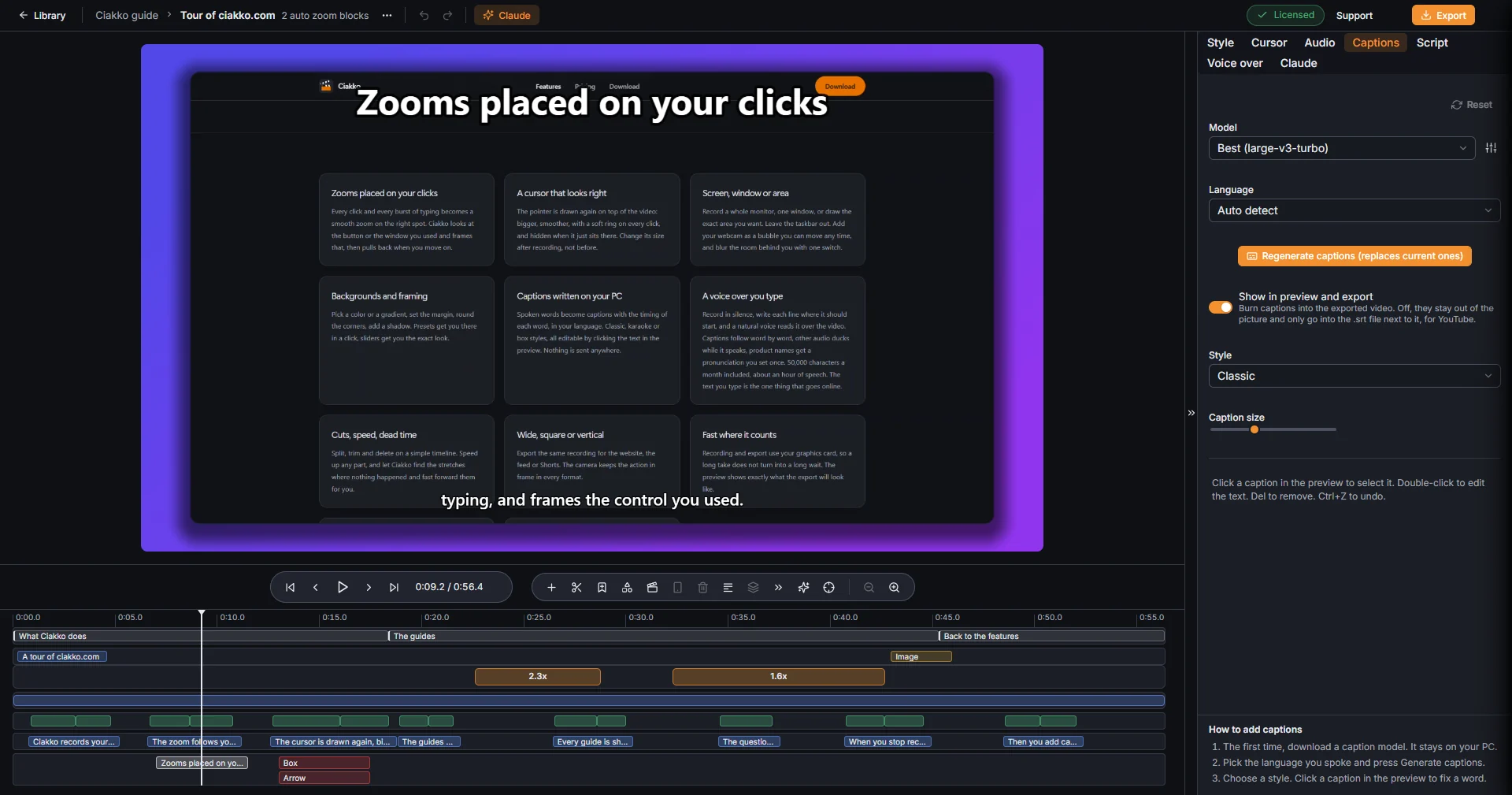
- The first time, pick the quality and press Download model. The model is downloaded once and stays on your PC.
- Choose the Language you spoke, or leave Auto detect.
- Press Generate captions. The words are written on your PC: nothing leaves it.
With Show in preview and export on, the captions are drawn into the video. Off, they only go into a .srt file next to the MP4, the kind YouTube reads.
Click a caption in the preview to select it, double-click to change its words.
Export
Press Export at the top right.
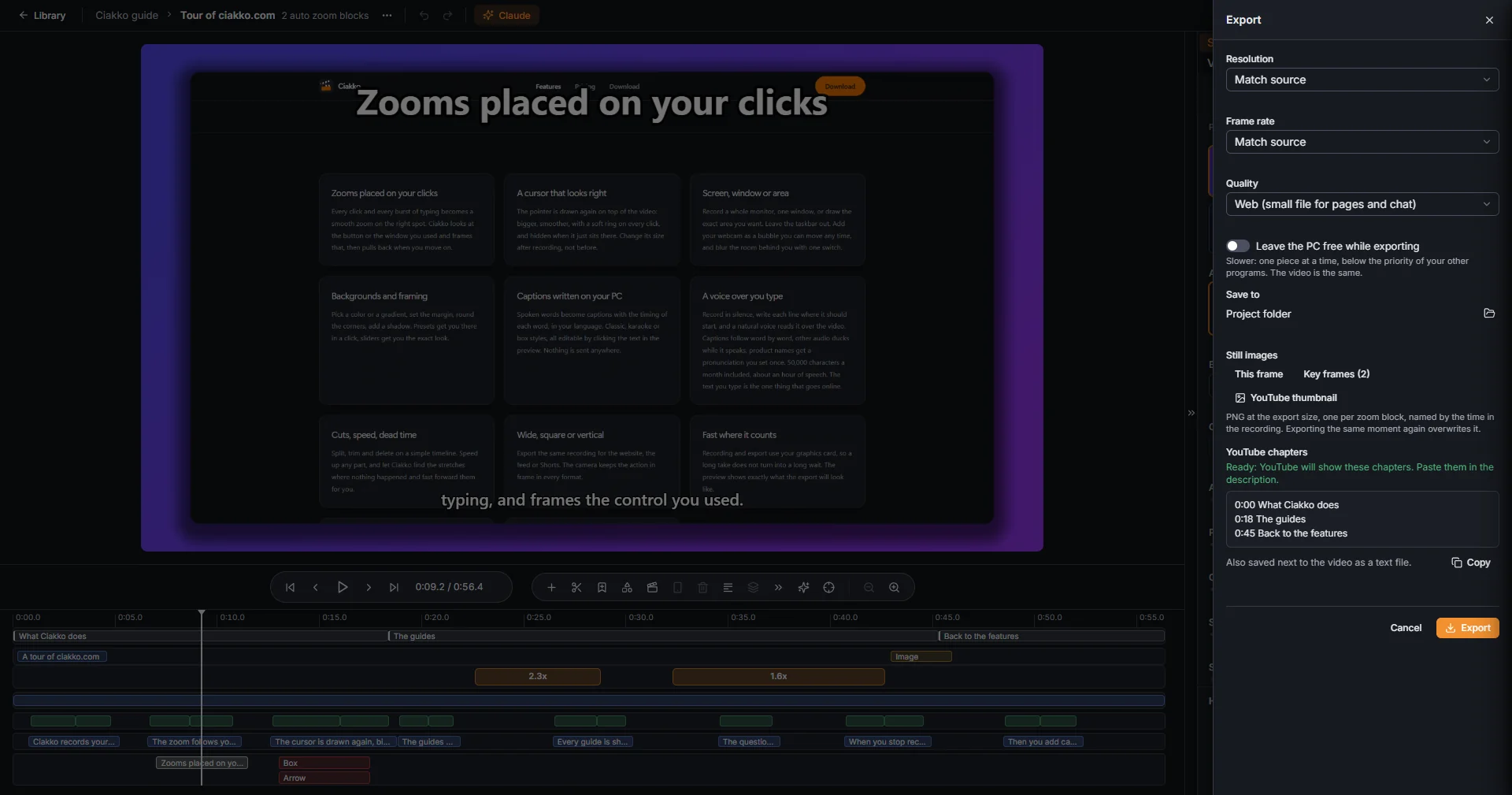
- Resolution: Match source keeps the size of the recording; 1080p and 4K resize it.
- Frame rate: Match source, 30 fps or 60 fps.
- Quality: High for YouTube, Balanced (smaller file), or Web (small file for pages and chat).
- Save to: Project folder, or Choose folder for another place.
Press Export at the bottom of the panel. The progress shows at the top of the editor; you can go on working, or close the editor, the export goes on.
Next to the MP4 Ciakko writes the captions file, and the YouTube chapters when the video has some.
Find the video again
Every take and every exported video is in the Library: Library at the top left of the editor, or the Ciakko icon next to the clock.
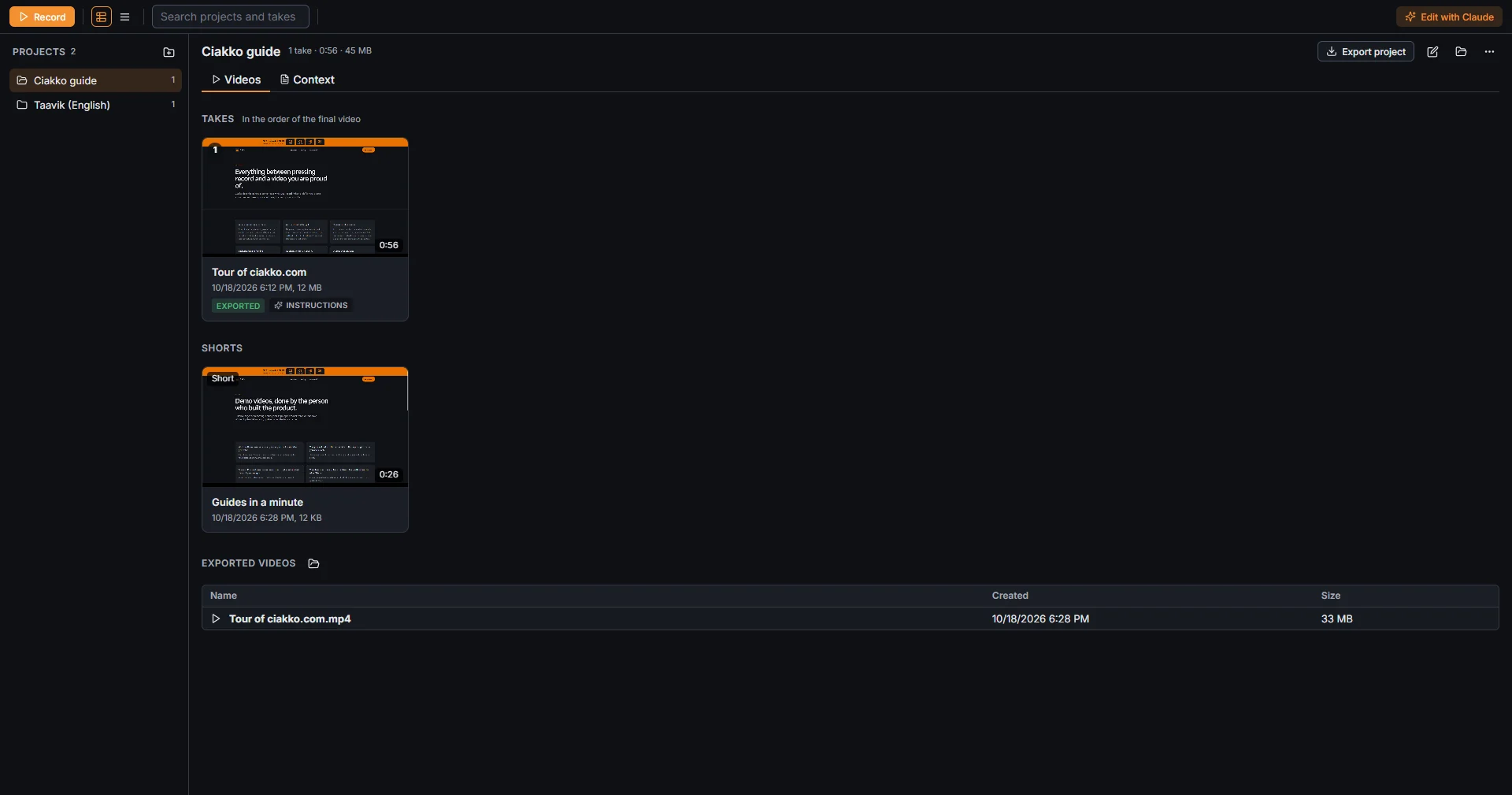
On the left the projects, on the right the takes of the chosen project, its Shorts and its exported videos. Double-click a take to open it in the editor.
If something does not work
- The recording window does not open. Click the Ciakko icon next to the clock and choose New recording.
- No zooms. Automatic zoom was off, or the take has no clicks. Use Regenerate zoom, or add them by hand.
- Captions with wrong words. Check the Language in the Captions tab, or pick a better Quality and press Regenerate captions (replaces current ones).
- Export is locked. The trial has ended: Buy Ciakko at the top of the editor.
More on the Troubleshooting page.