
Record in silence, then write what the video should say: a generated voice reads each line at its moment. The voice is made by Microsoft Azure from the text you write; the recording never leaves your PC. Generating uses the monthly voice characters included with the license.
The voice
Tab Voice over, Voice.
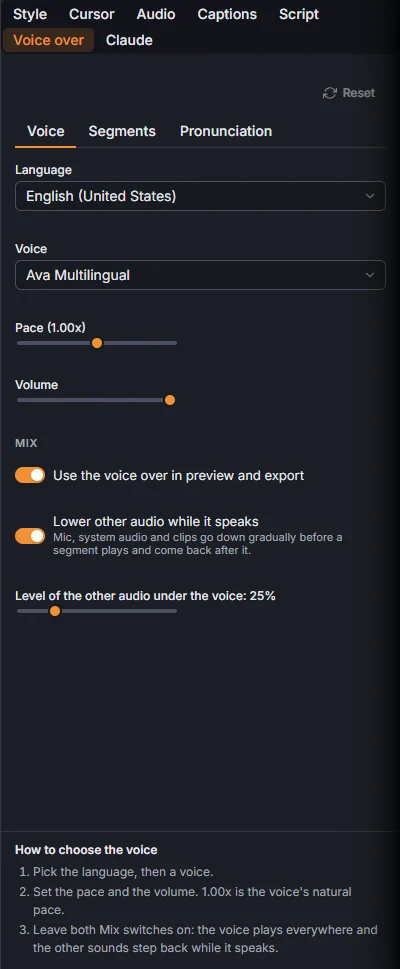
- Language and Voice. Multilingual voices also say foreign names as a native speaker would.
- Pace and Volume.
- Use the voice over in preview and export.
- Lower other audio while it speaks: the microphone, the computer's sound, the video clips and the music go down just before a line and come back after it; the slider under it says how far down.
The lines
Tab Voice over, Segments.
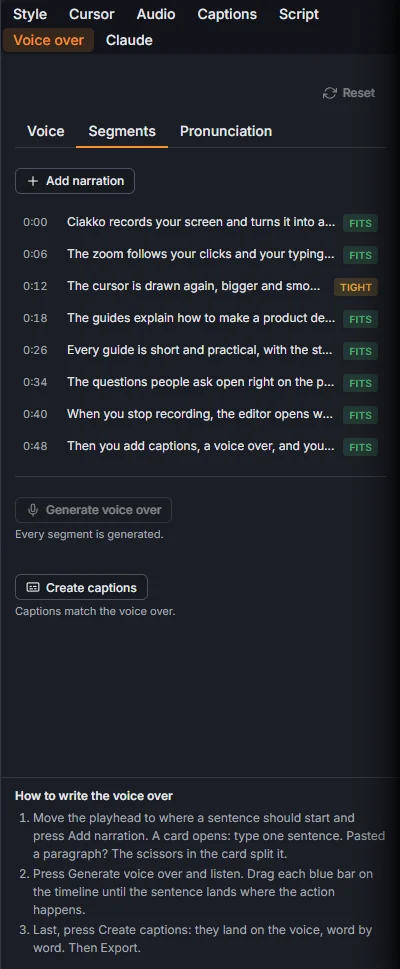
- Move the playhead where a sentence should start and press Add narration. A card opens: type one sentence.
- Generate voice over speaks every line not generated yet. Only lines whose text, voice, pace or pronunciation changed are generated again.
- Create captions lays captions on the voice, word by word.
Each line shows whether it fits before the next one: Fits, Tight or Overflow. Space out segments moves the lines that overlap just after the previous one. Drag a line's blue block on the timeline to move it.
Click a line on the timeline to open its card.
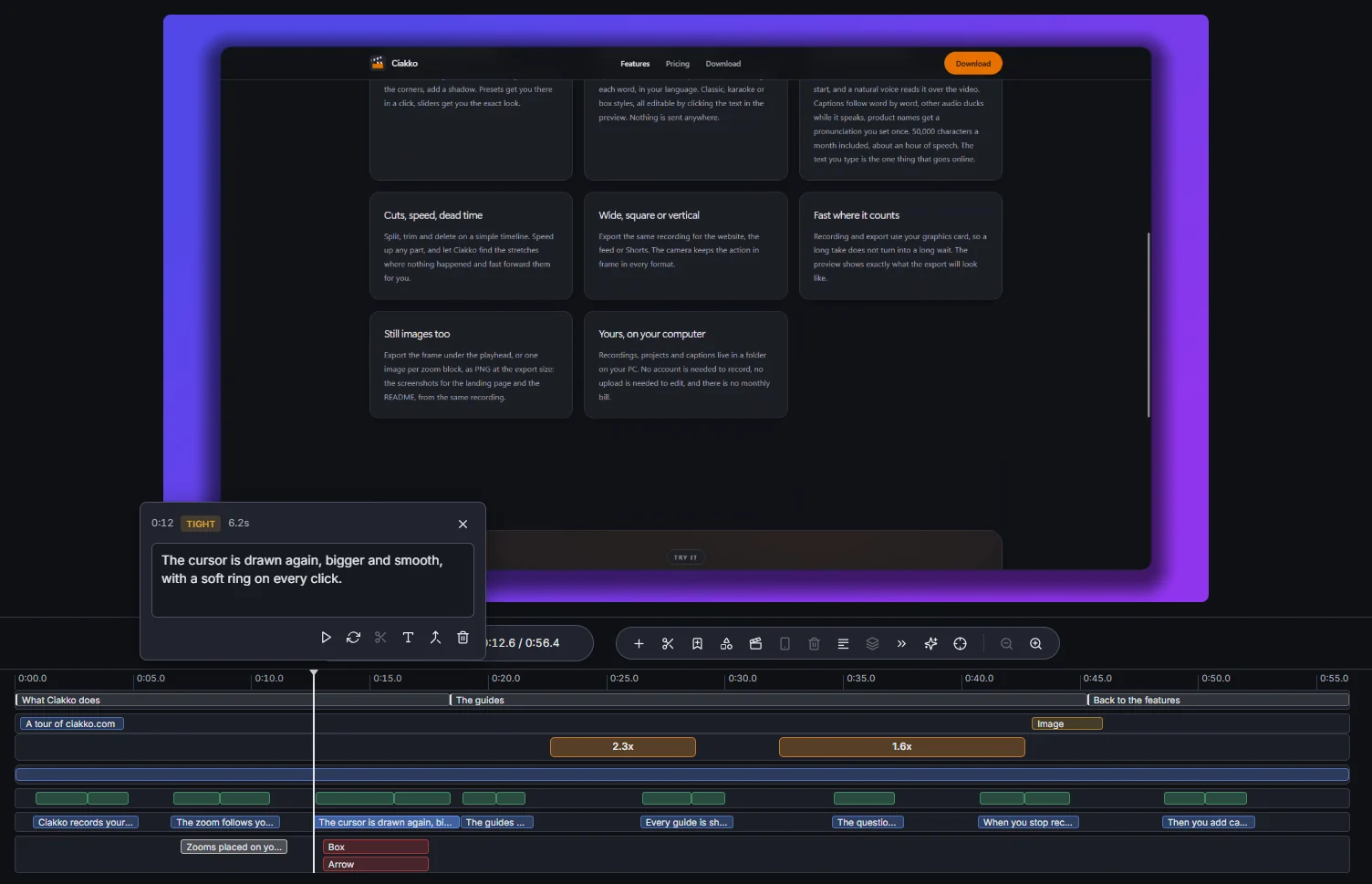
The card has Play from here, Generate this segment again, Split into sentences, Title card (a card from the sentence), Merge with the next segment and delete.
A line is never stretched by a speed change, and it stays silent when the part where it starts is cut.
Pronunciation
Tab Voice over, Pronunciation: for a word the voice gets wrong, such as your product's name.
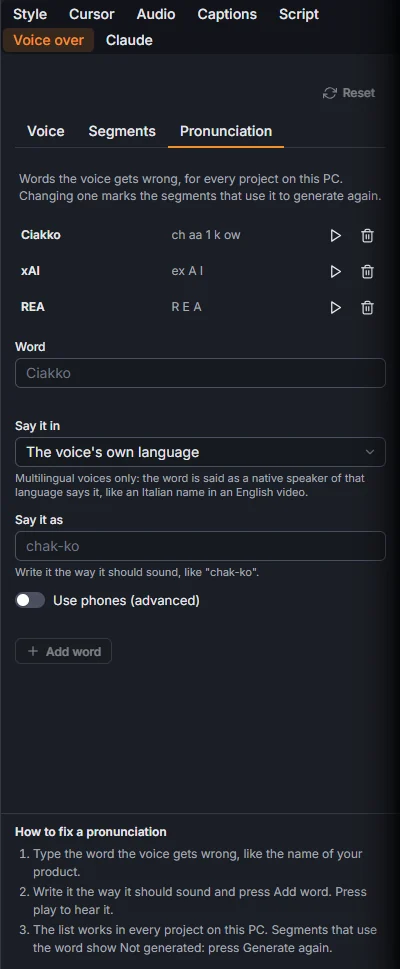
Type the Word, then Say it as (write it the way it sounds), or Say it in another language for a Multilingual voice, or Use phones (advanced). Hear it plays it, Add word saves it. The list works in every project on this PC; lines that use the word show Not generated: generate them again.