
Every recording is a take inside a project. When it stops, the take opens in the editor.
Open the recording window
From the Ciakko icon next to the clock, New recording. In the Library, Record records into the project on screen.
The tabs at the top are what you can record. Project at the bottom says which project the take goes into; the button next to it makes a new one.
A whole screen
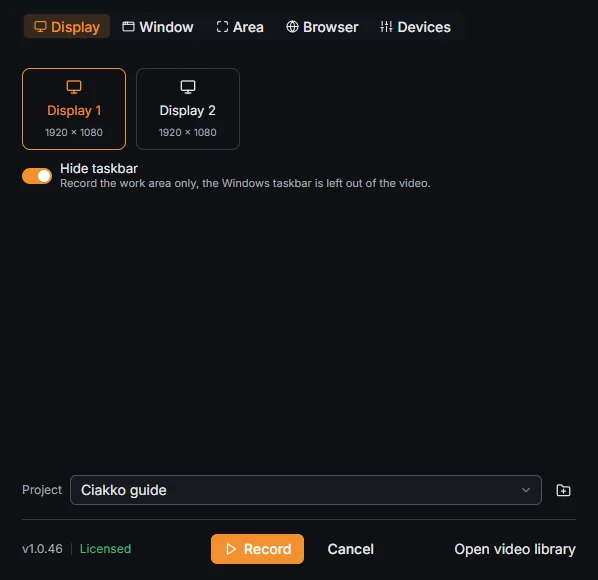
Pick the screen. Moving the pointer over a tile lights up that screen.
Hide taskbar records the work area only and leaves the Windows taskbar out. Turn it off when the program you record fills the whole screen, or its bottom strip is cut too.
One window
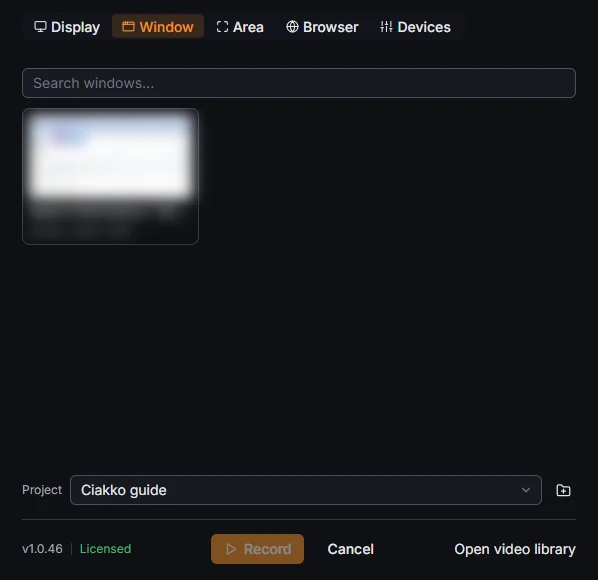
Every window you can record has a tile with its picture. Search windows... finds one by its title. The window is recorded whatever covers it, and if it changes size the video follows.
An area of the screen
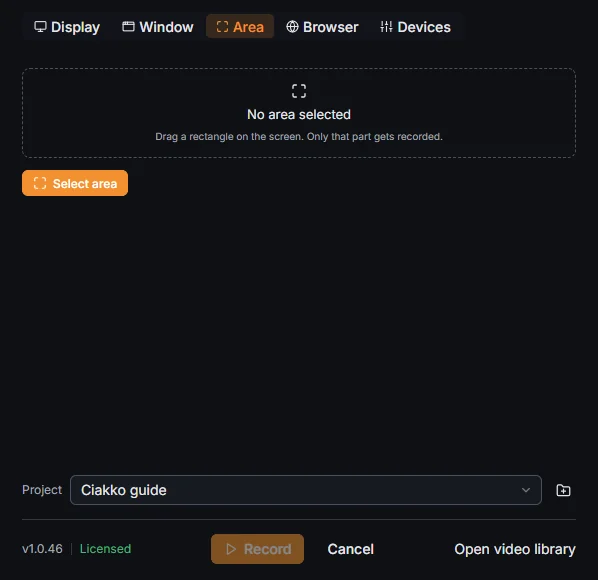
Select area dims the screens: drag a rectangle, adjust it with its handles, then press Enter (Esc gives up). Change area draws it again, Remove area clears it. An area always stays inside one screen. While you record, a thin frame shows its edges; the frame is not in the video.
A website
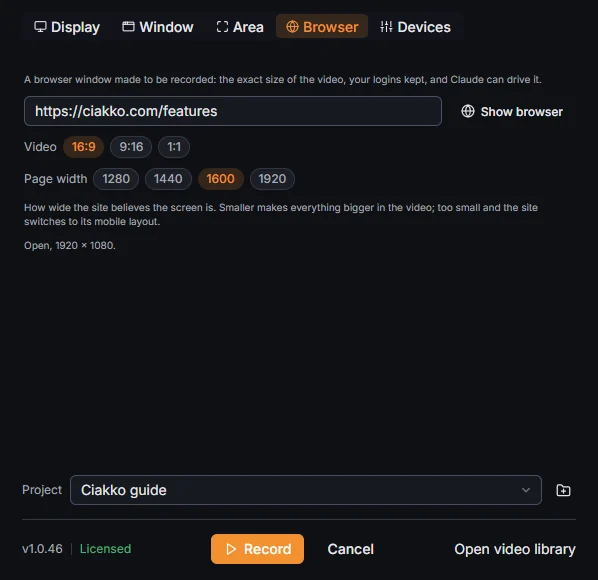
Ciakko has its own browser, made to be recorded at the exact size of the video. Type the address and press Open browser. The Ciakko browser page explains it.
Microphone, camera, computer sound
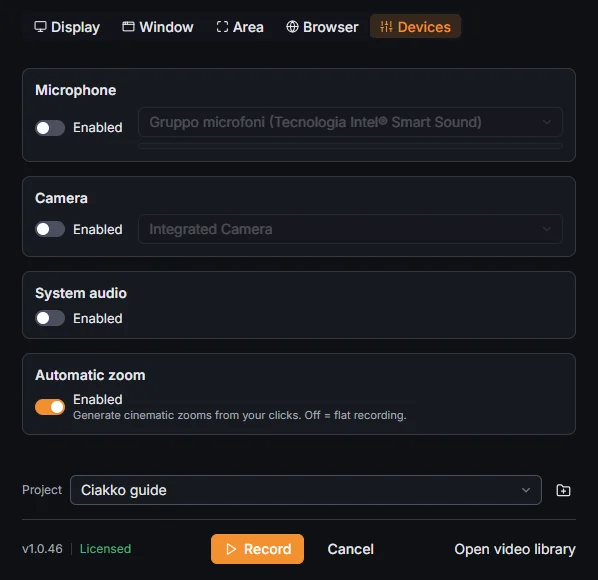
- Microphone: pick it and turn it on. The bar under it moves when it hears you.
- Camera: turn it on and your webcam appears as a bubble on the screen, where it will be in the video. Drag the bubble where it does not cover anything important.
- System audio: the computer's own sound.
- Automatic zoom: on, Ciakko builds the zooms from your clicks when you stop. Off, the take has none and you add them by hand.
Ciakko remembers these choices for the next recording.
While you record
Record starts a 3 second countdown, then the recording bar appears on the screen you record. The bar and the camera bubble are never in the video.

- Pause stops the clock; Resume goes on. The paused time does not exist in the video.
- Retake: you said a sentence wrong. Press it, then say it again. In the editor the wrong part waits as a proposed cut.
- Chapter: a YouTube chapter starts here. Its title comes from the first words you say after it.
- Stop saves the take and opens it in the editor.
Keyboard shortcuts
These work in any program:
| Keys | What they do |
|---|---|
| Ctrl+Shift+R | Starts a recording with the last settings, or stops the one running |
| Ctrl+Shift+P | Pauses and resumes |
| Ctrl+Shift+X | Marks a retake, only while a take is recording |
| Ctrl+Shift+M | Marks a chapter, only while a take is recording |
Before you start
- Ciakko needs 2 GB free on the disk to start a recording, and says so when they are missing.
- Close what you do not want in the video: notifications, other windows on the same screen.
- If the take loses too many frames, the editor and Claude say the picture is damaged: record it again.