
A zoom block brings the viewer close to where the action happens, then back out.
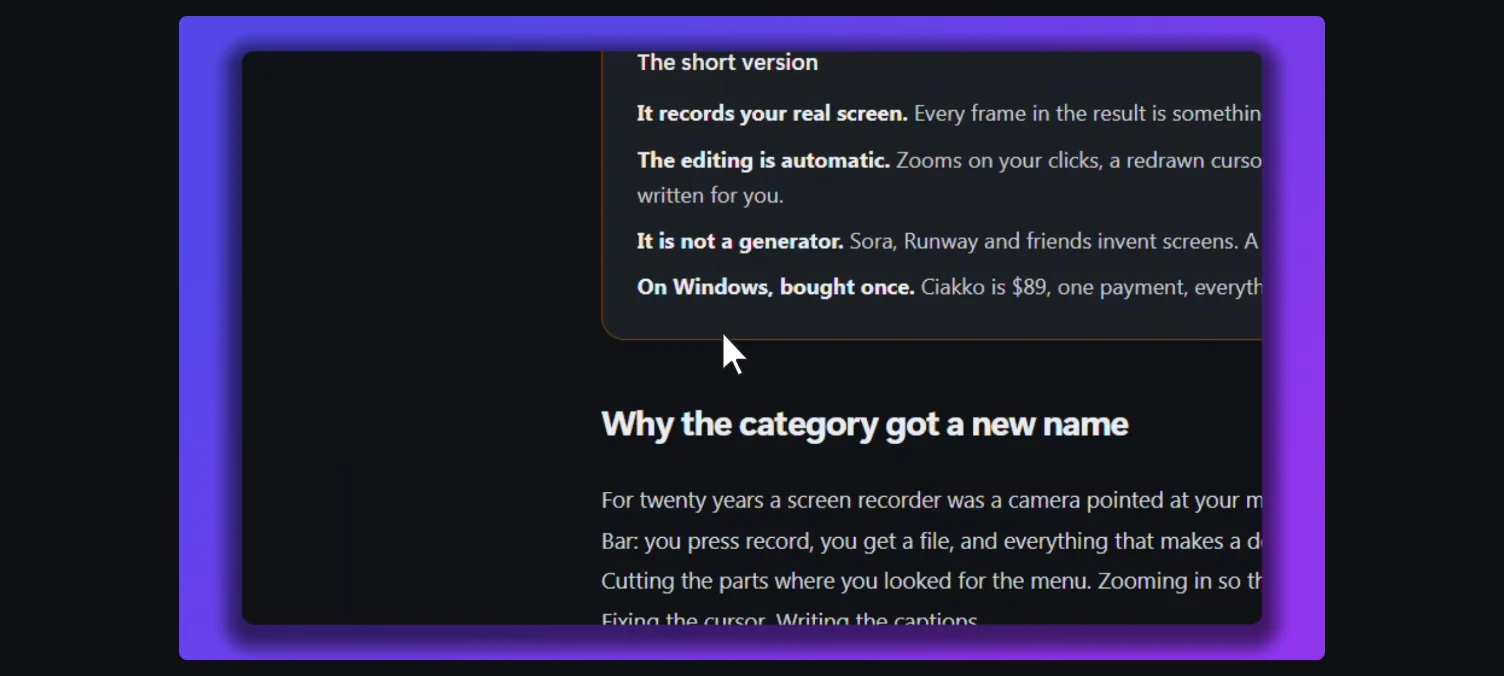
Automatic zooms
With Automatic zoom on in the recording window, Ciakko builds the zooms when you stop. It looks at your clicks and your typing as scenes: a few inputs close together become one zoom on what you used, framed on the button, the field or the window you clicked. A lone click you move away from is taken as navigation and gets no zoom; a click that closes its own window, like OK or Save, does not either.
Regenerate zoom, in Project actions at the top, builds them again from the clicks. It replaces the zooms you changed by hand; Ctrl+Z brings them back.
Zooms by hand
- Add zoom in the timeline toolbar adds a block at the playhead. Drag its edges to change when it starts and ends.
- Select a block: the toolbar shows its time and a slider for its level, from 1.1x to 2.5x. Apply this zoom level to all blocks copies it to every block.
- Delete (Del) removes the selected block; Remove all zooms removes them all.

Frame the zoom
Select a block and press Frame the zoom (F). The preview shows the whole recording with the zoom's frame on it: drag the frame, or its corners, to choose what the zoom shows. Esc finishes.
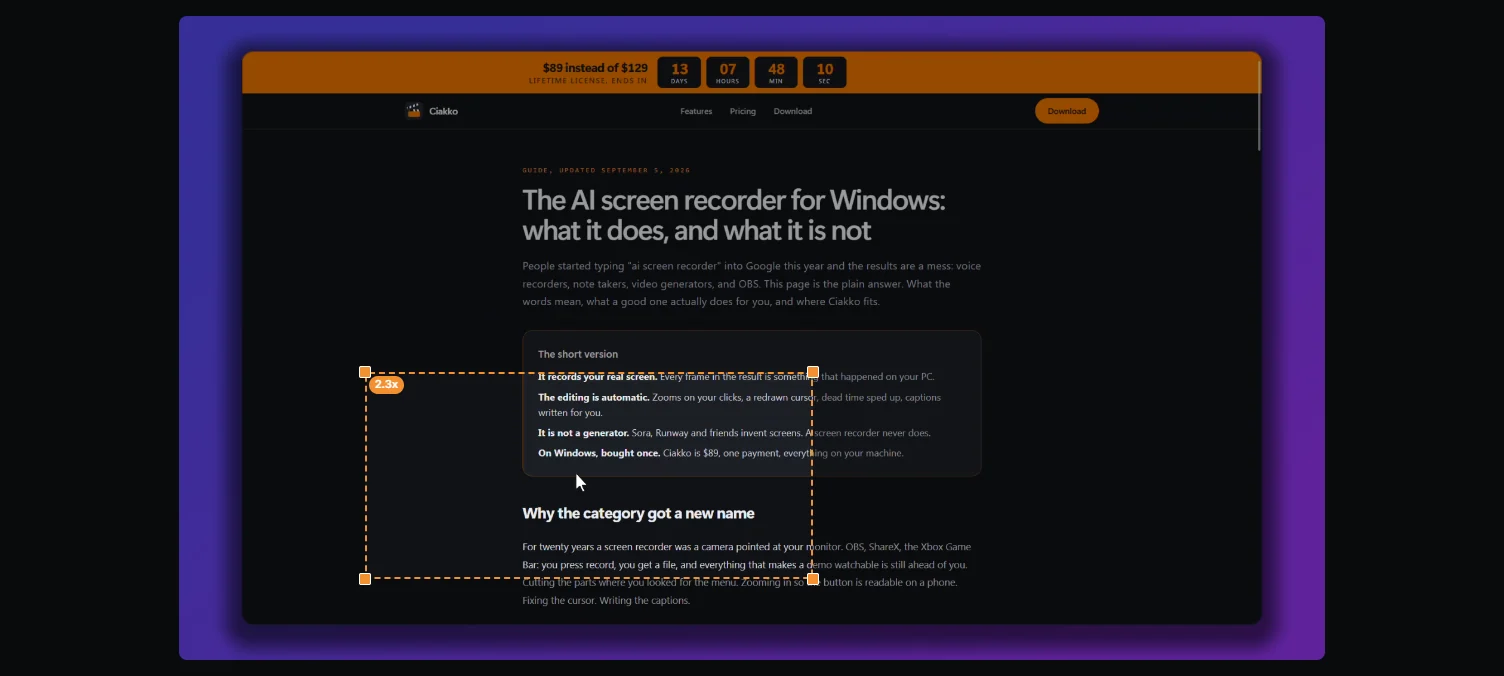
Inside a zoom the view follows the pointer only when it nears the edge, so the picture stays calm.