
What you need
- Windows 10 or Windows 11, 64 bit.
- A graphics card from the last few years. Recording and export use it; the export also works without one, only slower.
- Microsoft Edge WebView2. It is on most PCs already; the installer adds it when it is missing.
- A microphone and a webcam are optional.
Install
- On ciakko.com/download, press the download button.
- Enter your email. You receive a code: type it to confirm the address.
- Install Ciakko from the Microsoft Store, which also keeps it updated. On a PC without the Store, use the installer link on the same page.
Once installed, Ciakko lives next to the Windows clock.
Sign in
The first time it opens, Ciakko asks for your email and sends you a code. There is no password.
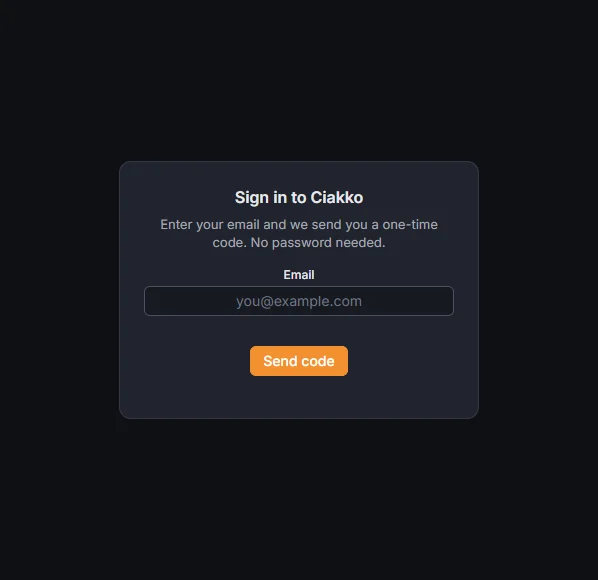
- Type the same email you used to download.
- Press Send code.
- Type the code from the email.
Once signed in, Ciakko keeps working without an internet connection: recording, editing and export happen on your PC.
The trial
The trial is the whole product for 14 days, with no payment card and no watermark on the exports. At the top of the editor a chip says how many days are left.
When the trial ends, recording and editing keep working. Exporting videos, saving still images and the YouTube thumbnail, generating the voice over and editing with Claude wait for a license: Buy Ciakko in the editor. See License, devices and updates.
The Ciakko icon next to the clock
Right-click the icon to reach everything without opening a window:
- New recording opens the recording window.
- Recent recordings opens one of the last takes in the editor.
- Library and Browser open those windows.
- Start with Windows starts Ciakko quietly when you sign in to Windows.
- Check for updates looks for a new version at once.
- User guide opens this guide in your browser, in the app's language.
- Report a problem opens the form that sends a description and the app's logs to support.
- Language switches between English and Italian.
- Sign out and Exit.
A double click on the icon opens the recording window.